

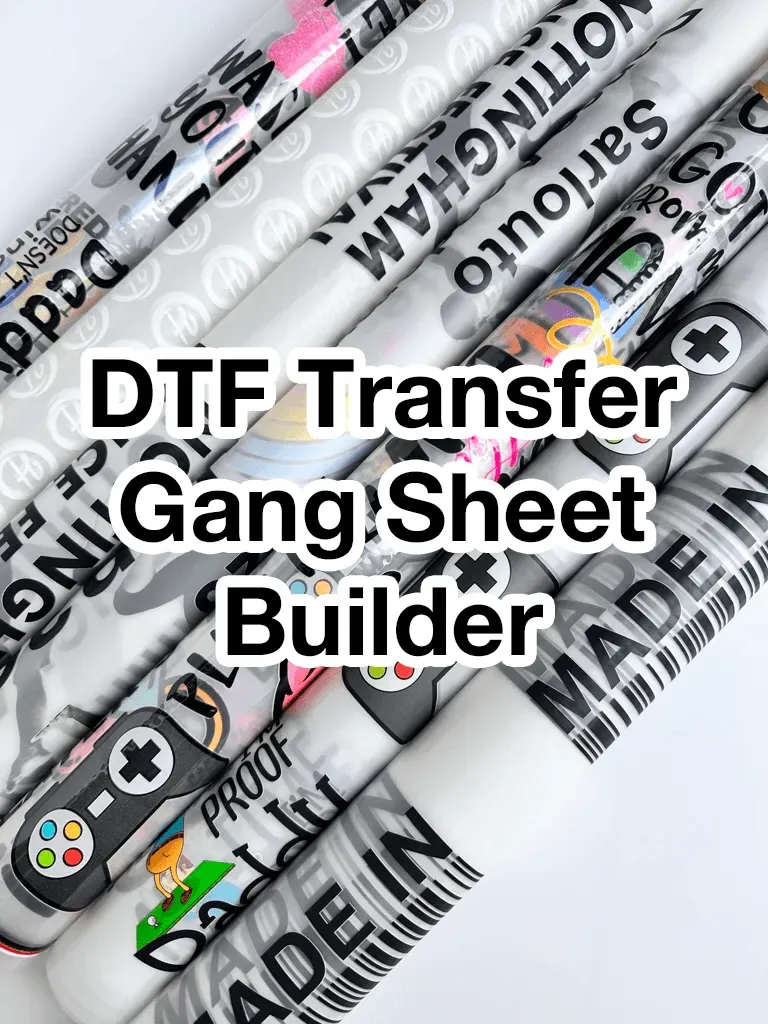
DTF Gangsheet Builder is a game-changer for designers who create multiple Direct-to-Film transfers, giving you a streamlined path from concept to production and a reliable toolkit for organizing complex projects. If you’ve ever struggled to arrange many designs efficiently, this tool guides you from initial concept through layout, margins, and color calibration, dramatically improving your DTF printing workflow and reducing the guesswork that slows finishes. With features that manage grids, bleed, asset libraries, and consistent color integrity, it helps you master DTF gang sheet design while keeping every design aligned, legible at scale, and ready for batch printing. Whether you’re a hobby designer or running a small print shop, the system emphasizes efficiency, minimizes waste, and supports scalable workflows so you can fulfill orders more quickly without sacrificing quality. From setting up the sheet size and grid to exporting ready-to-print files and coordinating with your transfer film supplier, this solution keeps projects organized and helps you deliver consistent results on every run.
In other words, this platform acts as a batch layout tool for direct-to-film projects, letting you place multiple designs on a single sheet with consistent margins and color fidelity. Developers and designers can orchestrate a grid-based workflow, optimizing how assets are arranged, trimmed, and color-calibrated across all items in a batch. By centralizing asset management and providing a preview of the cut lines, you can reduce waste and accelerate prototyping for transfer film designs. This approach aligns with modern printing workflows, helping shops scale catalogs and meet tight deadlines without compromising image quality. If you’re exploring ways to streamline production, consider tools that balance creativity with rigorous layout controls and a clear export path to production-ready files.
Getting Started with the DTF Gangsheet Builder: Setup, Grid, and Color Management
Starting with the DTF Gangsheet Builder sets the foundation for efficient gang-sheet production. Define your sheet size to match your printer, set the grid to the number of designs per sheet, and configure bleed, gutters, and margins so every asset has a clear space for trimming. This initial setup aligns with the DTF printing workflow, ensuring your designs are laid out in a way that translates cleanly from concept to print, preserving color integrity and the intended margins for every run.
Preview the final print area before committing assets, and apply color management steps early by selecting the appropriate ICC profile for your transfer film and printer. By coordinating grid accuracy with color management, you minimize surprises at print time and increase the chance of consistent outputs across batches. Attention to resolution, color space, and asset compatibility now helps you move smoothly toward print-ready DTF sheets.
DTF Gang Sheet Design Principles: Layout, Margins, and Consistency
A strong DTF gang sheet design balances aesthetics with production realities. Emphasize layout consistency by using a cohesive color palette and font family so the catalog reads as a unified collection when printed together. Establish clear hierarchy and readability so each design remains legible and impactful, even when scaled to fit within a shared sheet.
Incorporate safe zones and precise alignment as core design principles. Place critical artwork inside safe margins to prevent trimming, and leverage alignment guides or snap-to-grid features to keep every design perfectly aligned. Organize assets with logical naming and grouping so you can adjust individual items without disrupting the entire sheet, which speeds up the workflow and reduces the risk of misplacements.
Optimizing Your DTF Printing Workflow: Color Calibration and Template Standardization
Optimization starts with standard templates for common sizes and layouts. Reusable templates help you reproduce sheets quickly while preserving accuracy in bleed, gutters, and margins, a key part of the DTF printing workflow. Regular color calibration for monitor and printer minimizes color drift, ensuring your designs stay faithful to the art across batches.
Maintain robust version control and clear documentation so multiple designers can collaborate without confusion. Save iterations with explicit version labels, and keep a concise SOP that outlines asset preparation, placement steps, and final export requirements. When combined with transfer sheet compatibility checks and consistent ICC profiles, this approach reduces waste and speeds production while keeping output predictable and print-ready.
How to Create Gang Sheets for DTF: Practical Steps and Tips
If you’re new to the concept, follow a practical, step-by-step approach to how to create gang sheets for DTF. Start with a small two-by-two grid to learn the layout mechanics, then scale up as you gain confidence. Configure bleed and margins, import assets, place designs in the grid, and verify spacing before finalizing the layout.
Leverage automation features in the DTF Gangsheet Builder for batch placement or alignment, but verify each design at target size for legibility and edge sharpness. Keep important artwork away from cut lines, and check logos and text at the final print dimensions to ensure readability on the transfer sheets and to maintain consistency across the run.
DTF Transfer Sheets: Compatibility, Bleed, and Color Fidelity
DTF transfer sheets are central to achieving reliable color and adhesion. Ensure asset formats support the required color depth and that color profiles match both the printer and the transfer film you’re using. Proper bleed ensures no white edges appear after trimming, and gutters provide necessary clearance for clean cuts.
Color fidelity hinges on calibration and consistent media. Validate media compatibility by running test prints that compare on-screen simulations with actual outputs, and adjust ICC profiles as needed. Preparing designs with lossless formats and embedding or outlining fonts helps preserve crisp edges on the final transfer surface, keeping color and detail intact on every sheet.
Export, Validation, and Production of Print-Ready DTF Sheets
Exporting your DTF gang sheet should preserve fidelity and be compatible with your production workflow. Choose formats like PDF or TIFF and embed the correct color profile so the print matches the on-screen preview. After exporting, perform a quick test print on a single sheet to verify layout, color accuracy, and alignment before committing to full production.
Validation also includes a final check of margins, bleed, and asset integrity. When you’re satisfied, proceed with production by confirming lead times, ink settings, and transfer film compatibility with your printer. Maintaining a clear documentation trail for file versions and export settings helps ensure consistency across runs and makes handoffs to partners or print-on-demand services smoother.
Frequently Asked Questions
What is the DTF Gangsheet Builder and how does it help with DTF gang sheet design?
The DTF Gangsheet Builder is a workflow tool that orchestrates multi-design layouts on a single print sheet. It provides a grid-based canvas, precise bleed, gutters, and margins, plus a live preview to ensure consistent color and alignment across designs, accelerating the DTF printing workflow and improving DTF gang sheet design.
How do I create gang sheets for DTF using the DTF Gangsheet Builder?
Start a new project, set the sheet size to match your printer, and configure the number of designs, bleed, gutters, and margins. Import assets, place and align each design, adjust color as needed, and export a print-ready file (PDF or TIFF) with an embedded color profile. A quick preview helps verify layout before producing DTF transfer sheets.
What makes a sheet print-ready in the DTF Gangsheet Builder workflow?
A print-ready sheet features accurate color management (ICC profiles), adequate bleed, safe margins, high-resolution assets (300 DPI), and an export format that preserves color integrity (embedded profile). Performing a test print verifies alignment and helps ensure the sheet becomes print-ready DTF sheets.
How does the DTF Gangsheet Builder help maintain color accuracy across designs on a sheet?
It enforces color consistency through calibrated monitors, printer ICC profiles, and on-screen soft proofs. By applying uniform color management across all designs in the gang sheet, the builder helps preserve hue and saturation when producing print-ready DTF sheets.
What are common pitfalls in the DTF printing workflow when using gang sheets and how can I avoid them?
Common issues include misaligned sheets, color mismatches, inadequate bleed, inconsistent margins, and export corruption. Avoid them by verifying the printer feed, calibrating devices, using consistent ICC profiles, validating bleed and margins in the preview, and exporting with a robust check (then test printing a single sheet).
What practical tips speed up creating efficient DTF gang sheets with the builder?
Use templates for common sizes, leverage batch placement and alignment automation, organize assets with clear naming, work at 300 DPI for raster elements, keep essential artwork inside safe zones, and save versioned iterations to track changes across the DTF printing workflow.
| Aspect | Key Points |
|---|---|
| Definition | A DTF gang sheet is a single printing sheet that hosts multiple designs in a grid, allowing you to print many designs at once and cut them afterward, which boosts efficiency and reduces downtime. |
| Role of DTF Gangsheet Builder | Orchestrates layout, ensures correct positioning, margins, bleed, and color fidelity across all designs on the sheet. |
| Benefits | Faster production, lower per-unit cost, better inventory management, and more outputs per print cycle for small businesses and studios. |
| Layout concepts | Grid size, bleed, gutters, and margins; safe zones and alignment guides to keep designs accurate during trimming. |
| Design principles | Consistency across designs, clear hierarchy, safe zones, alignment accuracy, and organized asset management. |
| Artwork preparation | Use lossless formats (TIFF/PNG), aim for 300 DPI, convert text to outlines, and manage color with ICC profiles. |
| Step-by-step workflow | Step-by-step:
|
| Workflow optimization | Tips: Standardize templates, calibrate color, validate media, maintain version control, and document the SOP. |
| Practical tips | Tips: Start small with a 2×2 grid, keep artwork away from cut lines, use automation for batch placement, and check legibility at target size. |
| Common pitfalls | Pitfalls: Misalignment, color mismatches, insufficient bleed, inconsistent margins, and export file corruption. |
| Export and production checks | Export: Export as PDF/TIFF with embedded color profile, perform a test print, and re-export if necessary before full production. |
Summary
DTF Gangsheet Builder is a transformative workflow tool that helps you scale multiple designs into efficient, print-ready sheets while preserving color fidelity. This descriptive guide explains how to set up grids, manage bleed and margins, and export correctly to maintain consistent results across runs. By leveraging standardized templates, color calibration, and proper asset management, you can reduce waste, speed production, and deliver reliable, high-quality transfers batch after batch.